The short version
Five rules for a watchlist that finds what you want
- Name the item the way sellers write it: a model name, not a category. “Dyson V11”, not “vacuum”.
- One location per watchlist. A wide distance is fine; wide searches are covered at several points automatically.
- Leave the price open until you have seen a day of results, then set the most you would pay.
- Keep the term to two or three words. Put extra conditions in Refine, not in the term.
- Press Test this search before you save. It shows a week of real results for the sentence as written.
1. The sentence
Open the Watchlists tab and press Create Watchlist, or press Edit on an existing one. The watchlist is written as a sentence.
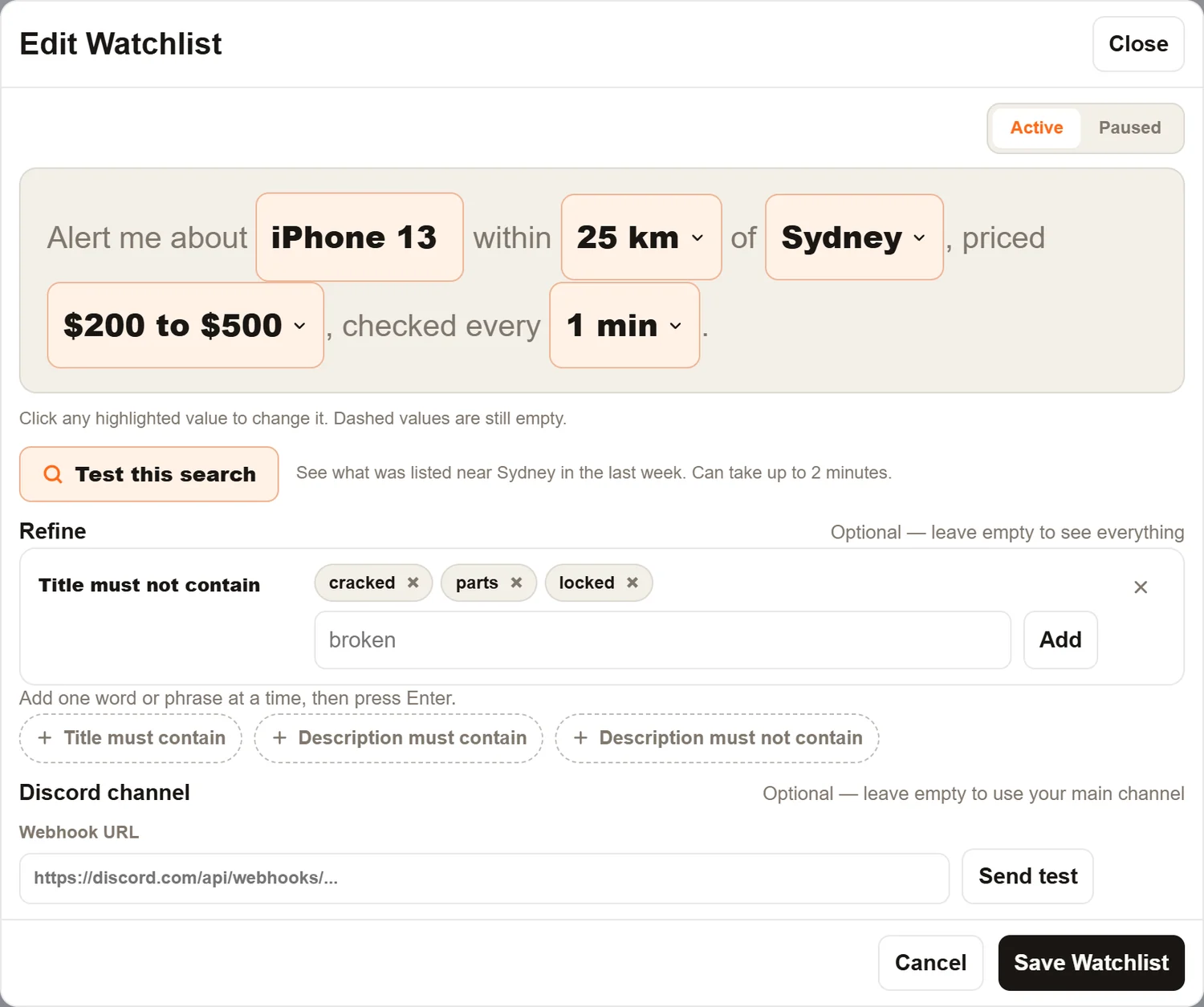
- Alert me about… the search term. This is what Facebook is asked for.
- within… the distance, 5 to 500 km or 3 to 310 miles.
- of… the suburb or city to search from.
- priced… the lowest and highest price you want to see.
- checked every… how often this watchlist is searched.
Under the sentence are Test this search, the Refine filters, and an optional Discord channel for this watchlist. Press Save watchlist when you are done. The toggle in the top corner pauses or resumes the watchlist.
Your home suburb and distance units come from Settings, then Watchlist defaults, so they are already filled in on every new watchlist.
2. Choosing the term
This is the part that matters most. The term is what Facebook searches for, and Facebook's search is loose: it returns anything that looks related to the words. A vague term returns a flood of listings that are not what you want, and even though every one of them is checked before it reaches you, a word like “console” gives the check no way of knowing which console you meant.
| Instead of | Write | Why |
|---|---|---|
| phone | iPhone 13 | Sellers write the model. A model name finds exactly that model. |
| graphics card | RTX 4090 | Nobody lists a “graphics card”; they list the card's name. |
| office chair | Herman Miller Aeron | “Office chair” returns hundreds of chairs you do not want. |
| bike | Trek Marlin 7 | “Bike” returns kids' bikes, exercise bikes and motorbikes. |
| console | PS5 or Xbox Series X | “Console” returns hallway console tables and car centre consoles. |
| Nintendo Switch OLED white 64GB with games | Switch OLED | Almost no seller writes all of that. Put “white” in Refine if it matters. |
| macbook air m2 2022 13 inch 8gb 256gb | MacBook Air M2 | Three words every listing contains. Add the rest as Refine filters. |
Two or three words is the sweet spot. A term of four or more words rarely matches anything, because sellers do not write titles that way. The watchlist card will warn you about this. If you need more detail, use the term for the item and Refine for the detail.
If sellers use two names for the same thing, test both with Test this search and keep the one that returns more of the right listings. For example, “PS5” and “PlayStation 5”, or “Gameboy” and “Game Boy”. If both return good results and your plan has room, run both as separate watchlists. You will only ever get one alert per listing, even if both match it.
Brand names on their own are usually too broad. “Dyson” returns vacuums, fans, hair dryers and spare parts. “Dyson V11” returns the vacuum.
3. Location and distance
Each watchlist searches from one place. Click the suburb in the sentence to change it; type any suburb or city and pick it from the list. The country is chosen at the top of the Watchlists tab, and searches never cross a national border, so set the country first if you are moving.
The distance can be anything from 5 to 500 km. Here is what actually happens behind it, because it affects what you should set:
- A Facebook Marketplace search covers a circle of roughly 150 km around the point it is given, whatever distance you ask for. Facebook ignores smaller and larger numbers.
- For a distance up to about 165 km, that one circle already covers your watchlist. We then trim the results down to the distance you set, so a 25 km watchlist really does only show listings within about 25 km.
- For a bigger distance, Outpost adds extra search points inside your circle, chosen by where people live, up to twelve of them. A 300 km watchlist is genuinely searched out to 300 km. You do not see the extra points; every listing they find appears as a normal alert on the one watchlist.
What to set:
- Pickup only, in a city: 20 to 40 km. Far enough to cover the city, close enough that you would actually drive there.
- Worth a longer drive: 80 to 150 km. Good for items that are rare or valuable, like a particular car or a high-end camera.
- A whole state, or a seller who will post it: 300 to 500 km. One wide watchlist uses one watchlist slot and covers a lot of ground.
Facebook places each listing at its suburb or city, not its street address, so a listing a few kilometres outside your distance can occasionally land inside it.
4. Price
Click the price in the sentence to set a lowest price, a highest price, or both. Leave both empty to see everything.
- Start with no price for a new item, and watch a day of results. You will quickly see what the item normally goes for.
- Then set the highest price at the most you would pay. For a reseller that is the price that still leaves a margin, not the item's retail value.
- Use a lowest price to remove “$1” and “$0” placeholder listings, which are usually “make an offer” or wanted ads, and to remove parts and accessories. For an RTX 4090 that sells for $1,500, a lowest price of $500 removes the fans, brackets and cables that mention it.
Do not make the range narrow. If the gap between the lowest and highest price is less than a quarter of the lowest price, for example $400 to $480, most listings will fall outside it and the watchlist card will tell you so. Sellers price in round numbers and odd ones, and the bargain you want is often outside the band you expected.
5. Refine filters
The Refine section under the sentence adds conditions on top of the search term. There are four:
- Title must contain
- Title must not contain
- Description must contain
- Description must not contain
Press the one you want, type one word or short phrase, press Enter, and repeat for each word. In the editor screenshot above, the iPhone 13 watchlist has Title must not contain: cracked, parts, locked.
These filters run on our side after Facebook returns its results. That means they only ever remove listings; they cannot make Facebook search for anything extra. So the search term should be the item, and Refine should be the detail that separates the listing you want from the ones you do not.
| You want | Term | Refine |
|---|---|---|
| A white Switch OLED, not the grey one | Switch OLED | Title must contain: white |
| Working iPhones only | iPhone 13 | Title must not contain: cracked, parts, locked, faulty |
| An Aeron with the lumbar support | Herman Miller Aeron | Description must contain: lumbar |
| A drill with batteries, not a bare tool | Makita drill | Title must not contain: skin, bare, tool only |
| Cars sold by owners, not dealers | Toyota Corolla | Description must not contain: dealer, finance, warranty, ABN |
A “must contain” word has to appear exactly. “Title must contain: 256” matches “256GB” and “256 GB”, but a filter for “256 gig” would miss both. Keep the words short.
6. Words that apply to every watchlist
Some words you never want to see, whatever you are searching for. Rather than add them to every watchlist, put them in Global watchlist preferences at the bottom of the Watchlists tab.

- Exclude any listing with: a listing whose title or description contains any of these words is removed from every watchlist. These are checked first, before anything else. A good starting set is wanted, WTB, looking for, broken, faulty and parts only, which between them remove most “wanted to buy” posts and most junk.
- Always include any listing with: a listing with one of these words is let through even if one of a watchlist's own Refine filters would have removed it. For example, add sealed or brand new here and a sealed item gets through a “Title must not contain: box” filter. Global exclude words still apply to it. Most people leave this empty.
Add one word at a time, press Enter, then press Save preferences.
7. How often it is checked
Click checked every in the sentence. The choices depend on your plan:
- Basic: every 30 minutes.
- Standard: every 5 minutes, and one watchlist can be every 3 minutes.
- Pro: every 3 minutes, and one watchlist can be every 1 minute.
Only one watchlist can hold the faster setting at a time. If another watchlist already has it, the editor tells you which. Give it to the item where being first decides the deal. What the interval changes, and what it cannot, is explained in How fast we find new listings.
8. Test this search
Before saving, press Test this search. Outpost runs a real Facebook Marketplace search for the sentence exactly as written and shows what was listed in the last week. It can take up to two minutes, so keep the screen open. The test does not save anything.
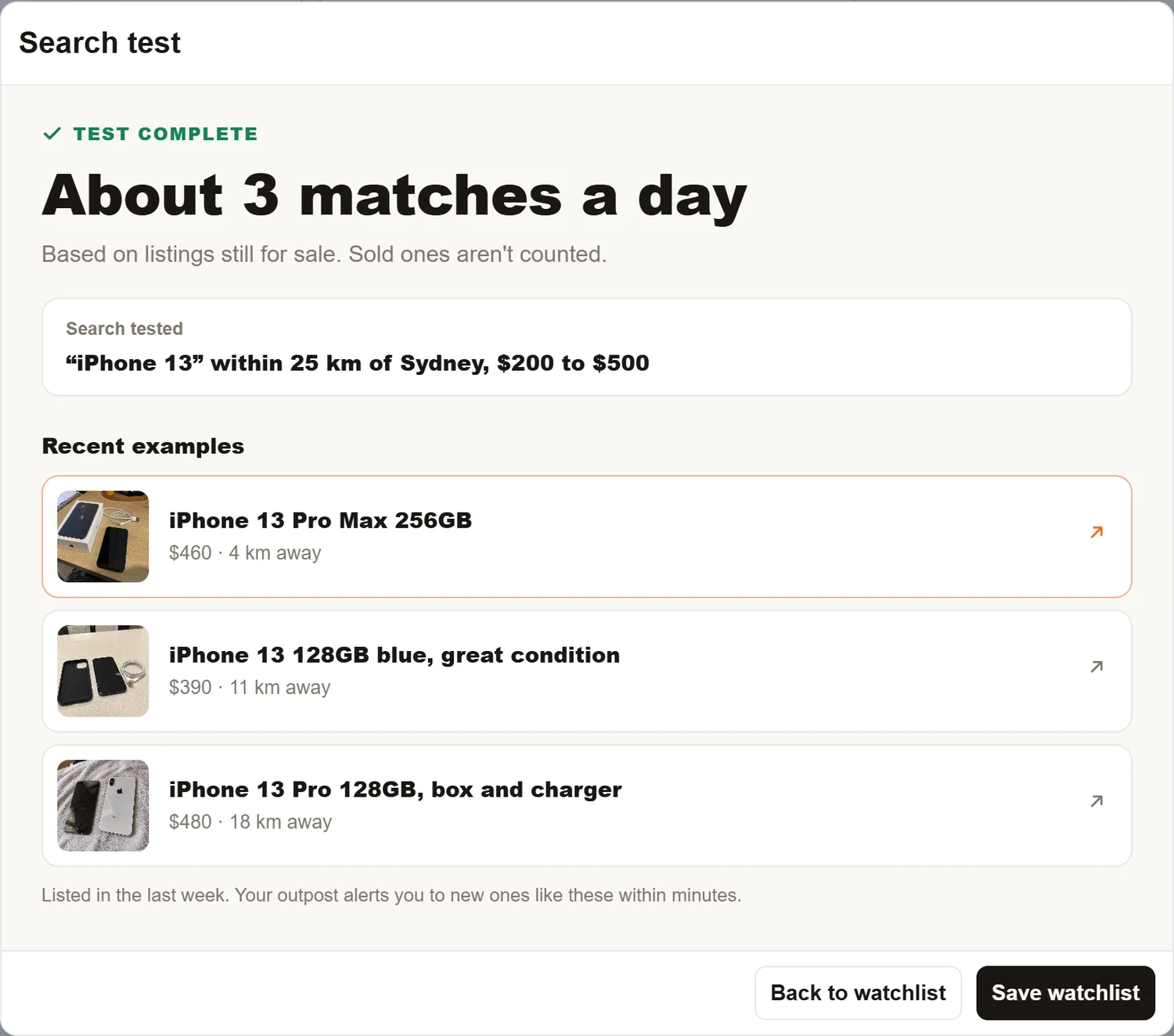
The result is one of three:
- “About 3 matches a day” (or similar): the search works. The number is how many matching listings per day were posted in the last week. Below it are recent examples. If they are the right item, press Save watchlist. If they are the wrong item, press Back to watchlist and tighten the term or add a Refine filter.
- “Close, but nothing fits yet”: Facebook returned listings for those words, but none of them was really the item at that price. Usually the term is too loose or the price range is too tight.
- “Nothing listed nearby lately”: no matching listing was posted near that place in the last week. Try fewer words, the spelling sellers use, or a wider distance. If a week of searching finds nothing, a live watchlist will find very little too. Rare items are still worth watching, just expect long gaps.
Below a quiet result the test may offer a change to try, such as a wider distance. Each one runs the test again so you can compare.
The count is based on listings still for sale. Anything that sold during the week is not counted, so the real number is a little higher.
9. Reading the watchlist cards
The Watchlists tab shows one card per watchlist, with the sentence, any Refine words, and a chip that says how it is going. The line under the heading counts them: 5 of 10 used · 3 active · 2 need attention.
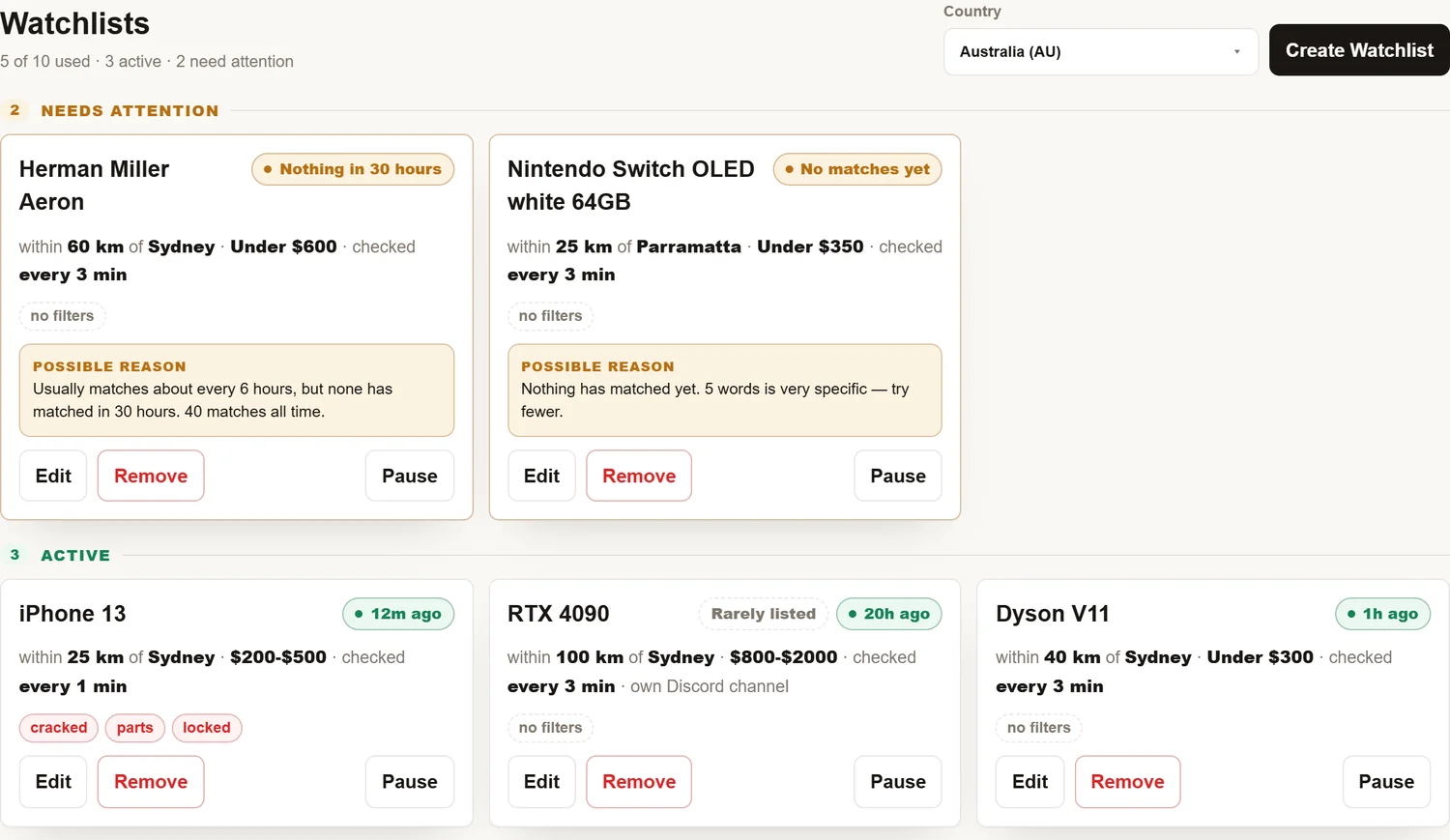
What the chips mean:
- 12m ago (green): the watchlist last matched something 12 minutes ago. All good.
- Rarely listed (grey badge): Facebook returned nothing for most of this watchlist's searches in the last seven days. The watchlist is working; the item is simply not listed often in that area. Expect few alerts. A wider distance usually helps.
- Nothing in 30 hours (orange): the watchlist has searched for 30 hours since it last matched, which is longer than its usual gap. The box underneath says what the usual gap is, so you can tell a dry patch from a problem. The hours only count time the watchlist was actually searching; time paused or in quiet hours is not counted.
- No matches yet (orange): the watchlist has never matched. The box underneath says why that is likely: a narrow price range, a term of four or more words, or a phrase that may just be too specific.
- Nothing on Facebook (orange): Facebook is returning listings here, but none has matched your words and filters. The box suggests loosening the price, filters or term.
- Paused (grey): you paused it. Press Unpause to start it again.
Cards in the Needs attention group are not broken. They are watchlists where a change would probably help, and the possible reason tells you what to try first.
10. The Ignored tab
Before any match is alerted, it is checked against what you asked for: the term, the price, your Refine words, and whether the listing really is that item. Matches that fail go to the Ignored tab with the reason written under the title.
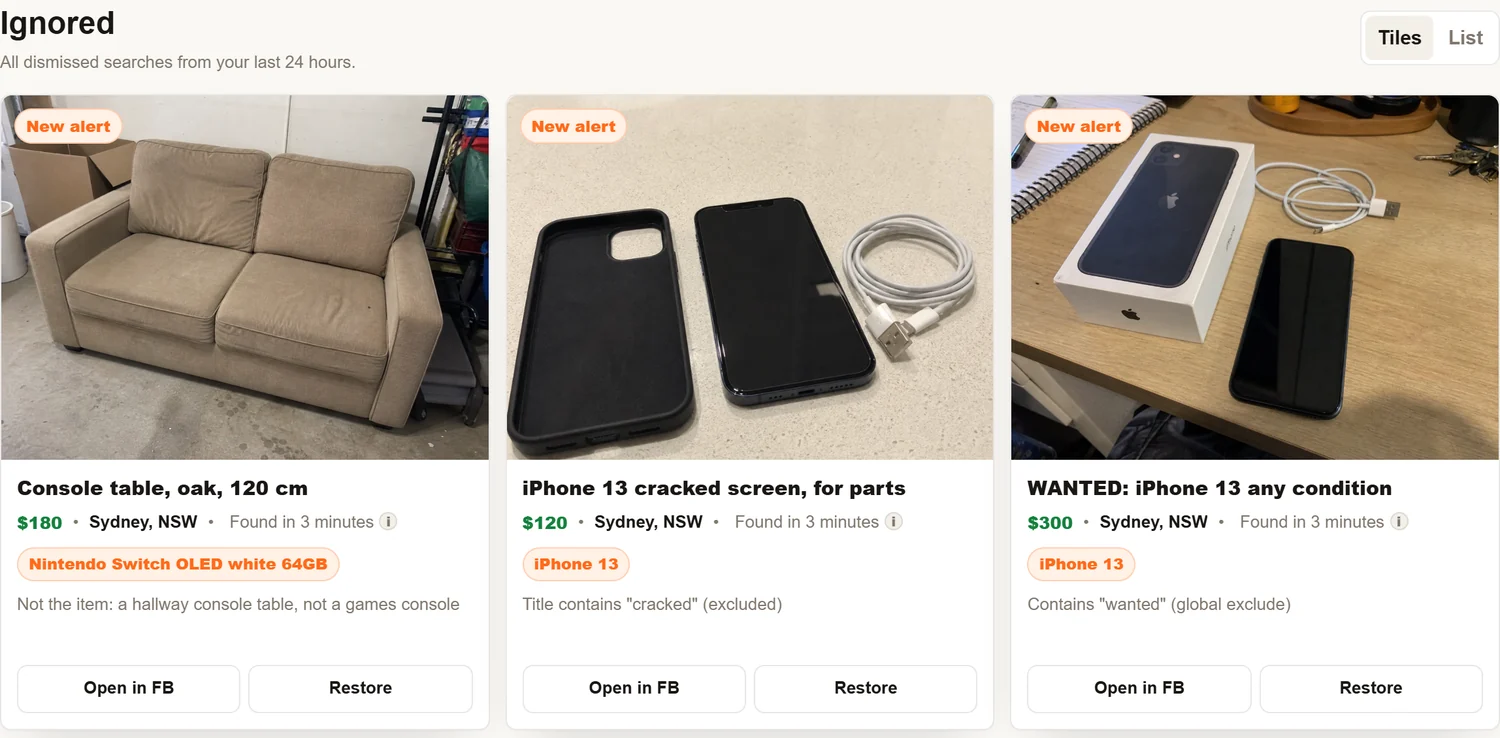
Three kinds of reason appear:
- Not the item. The listing matched the words but was not the thing you asked for: a console table under “console”, a phone case under “iPhone 13”. If you see a lot of these, the term is too broad for the check to know what you mean. Use a more specific term, or add a Refine word that names what you want.
- Caught by a filter. The title or description contained one of your exclude words, or a global exclude word. If the word is catching things you want, remove it or make it more specific.
- Dismissed from dashboard. You pressed Ignore on it.
Press Restore to bring a listing back into Alerts. The Ignored tab shows the last 24 hours. Pressing Ignore on alerts you do not want also teaches the check what you skip, so it gets better over time.
11. Pausing, limits and overlap
- Pausing: press Pause on a watchlist card, or switch the toggle in the editor. A paused watchlist keeps all its settings and history, and starts again when you unpause it.
- Limits: 1 watchlist on Basic, 5 on Standard, 10 on Pro. If you move down a plan, the extra watchlists come off your dashboard. We keep a copy, so they come back if you move up again.
- Overlap: if two watchlists would match the same listing, you get one alert, not two.
- Removing: Remove deletes the watchlist and its history. Pause it instead if you might want it back.
Common mistakes
“Laptop”, “bike”, “chair” and “console” all return far more wrong listings than right ones, and the check cannot tell which one you meant. Write the model.
“iPhone 13 Pro Max 256GB blue unlocked” almost never matches, because sellers do not write titles like that. Use “iPhone 13 Pro Max” and put “256” in Title must contain.
$400 to $450 misses the $380 bargain and the $460 that would have been fine. Leave the price open to start, then set a ceiling.
Searches wider than about 165 km are covered at several points automatically. One 300 km watchlist from the middle of your region uses one slot and covers every town in it.
Test this search takes a minute or two and shows a week of real results. It is the fastest way to find out that “Switch” is finding light switches.
Listings posted during quiet hours are never sent. If a watchlist seems to miss things overnight, check Settings, then Alerts, and your time zone under Account.
Common questions
Can I watch a whole category with no search term?
No. Every watchlist needs a term, because that is what Facebook searches for. For "all cars", run a watchlist per make. Be ready for the volume: one broad "Toyota" watchlist in a large city sends several hundred alerts a day.
Can one watchlist cover two cities?
Not two separate places, but a distance wide enough to reach both is searched at several points automatically, so one watchlist can cover both cities and everything between them.
Does the search term look at descriptions too?
Facebook decides what its search returns for a term, and it looks at more than the title. Our Refine filters then check the title and the description separately, so you can insist that a word appears in the title, or that another never appears in the description.
Why did I get a listing from outside my distance?
Facebook places a listing at its suburb or city, not its street, so a listing a few kilometres past the edge can land inside the circle.
How many watchlists should I start with?
One or two specific ones. Watch a day of results, tune the price and Refine words, then add the next. Five vague watchlists make more noise than two sharp ones.
Can I change a watchlist without losing its history?
Yes. Edit changes the sentence and keeps the history. Only Remove deletes it.
What does the number in Test this search mean?
How many matching listings per day were posted near that place in the last week, counting only listings still for sale. It is a rough guide to how many alerts to expect.
Try it on your next watchlist
Open the Watchlists tab, write the sentence, and press Test this search before you save. If the results do not look right, send us the term and we will tell you what we would change.