The short version
A webhook, a paste, and a test
- In Discord, open the channel's settings, go to Integrations, then Webhooks, press New Webhook and Copy Webhook URL.
- In Outpost, go to Settings, then Alerts. Tick Enable Discord webhooks, paste the URL, press Send test webhook, then Save alerts.
- In Discord, set the channel's notifications to All Messages so webhook posts reach your phone.
- Optional: open any watchlist and paste a different channel's webhook to send that watchlist to its own channel.
1. Create the webhook in Discord
A webhook is a special web address that lets Outpost post messages into one channel on your Discord server. There is no bot to invite and nothing to install. You need to be able to manage the channel; on your own server you can, and on someone else's server you need the Manage Webhooks permission.
- Open the channel's settings
On a computer, hover over the channel name in the left-hand list and click the gear icon that appears, or right-click the channel and choose Edit Channel. On the phone app, press and hold the channel name, then open its settings.
- Go to Integrations, then Webhooks
In the settings menu on the left, choose Integrations. Press Webhooks, then New Webhook. Discord creates one with a random name.
- Name it and check the channel
Click the new webhook to expand it. Change the name to something you will recognise later, such as “Outpost Alerts”. Check that the channel shown is the one you want alerts in. Press Save Changes if Discord shows the button.
- Copy the URL
Press Copy Webhook URL. The address looks like https://discord.com/api/webhooks/1234567890123456789/AbCdEf…. That is all Outpost needs.
If you cannot find Integrations on the phone app, use Discord on a computer or in a web browser for this step. It takes a minute and you only do it once per channel.
Treat the URL like a password. Anyone who has it can post into that channel. Do not paste it in public. If it ever leaks, delete the webhook in Discord, make a new one, and paste the new URL into Outpost.
2. Paste it into Outpost
Open the dashboard and go to Settings, then Alerts.
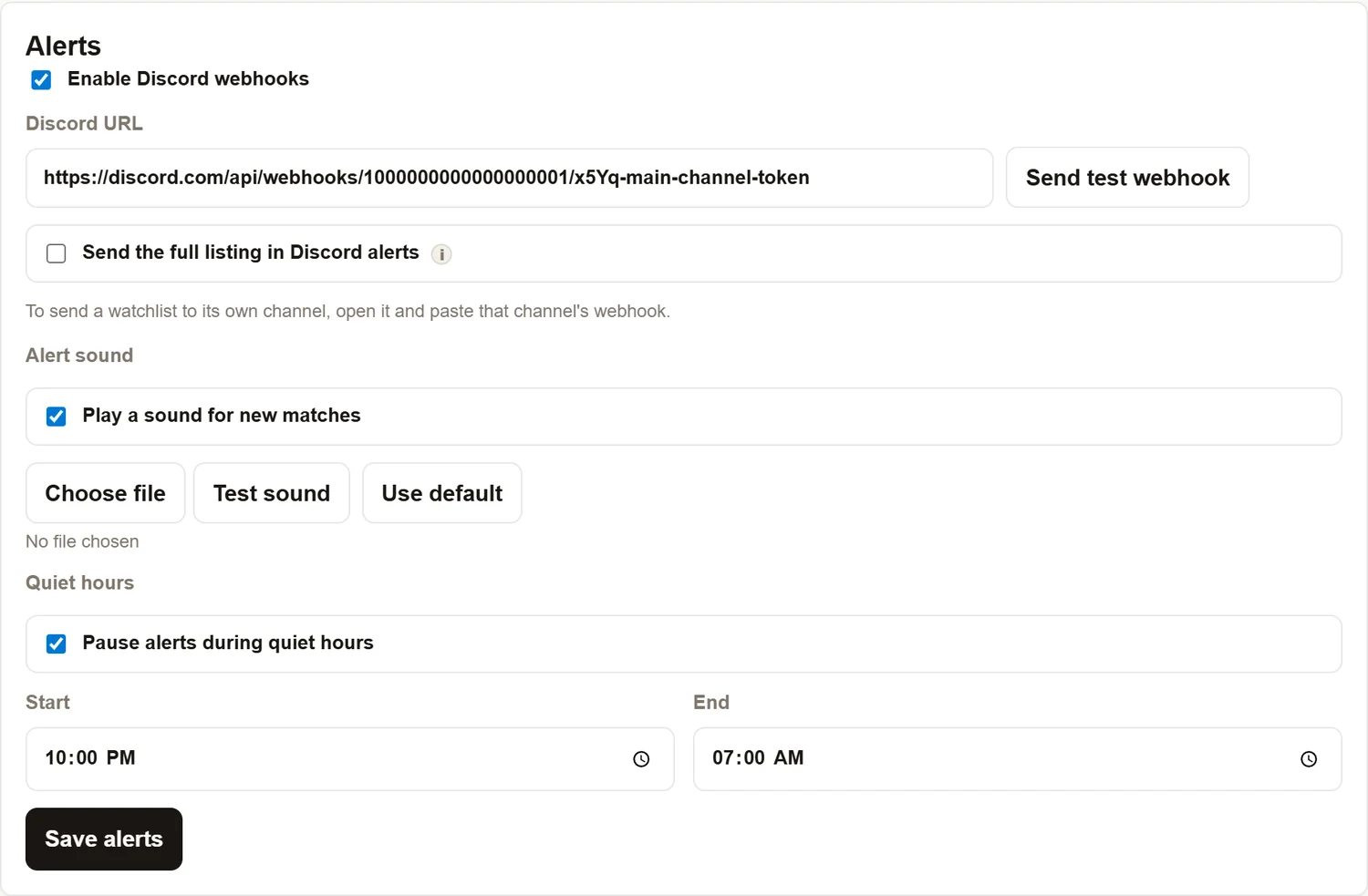
- Tick Enable Discord webhooks.
- Paste the URL into Discord URL. The field only accepts a real Discord webhook address. If it is refused, check that the paste starts with https://discord.com/api/webhooks/ and has no spaces at the ends.
- Press Send test webhook. Within a few seconds a sample listing appears in the channel. If it does not, see section 7.
- Press Save alerts.
From now on, every alert that reaches the dashboard is also posted in that channel. Alerts for listings that were already up when a watchlist started (the Before your outpost started section) are not posted; only live alerts are.
3. What arrives in the channel
Each alert is one message. The standard message is short:
The Open in Outpost button under the message opens the listing in your dashboard, where Open in FB, Track, Bought and Ignore are one tap away.
If you tick Send the full listing in Discord alerts, the message carries the seller's full description as well, and gets a second button that opens the Facebook listing directly:
Choose the full listing if you want to read the description and message the seller straight from Discord. Leave it off if you prefer a short feed and would rather open the dashboard to decide.
The seller's words are posted as plain text, so nothing in a listing title can change how the message looks or hide part of it.
4. One channel per watchlist
The webhook in Settings is your main channel, and every watchlist posts there unless you tell it otherwise. To send one watchlist to its own channel:
- Create a webhook on that channel in Discord, as in step 1, and copy its URL.
- In Outpost, open the Watchlists tab and press Edit on the watchlist.
- Scroll to Discord channel at the bottom of the editor and paste the URL into Webhook URL.
- Press Send test to check it, then Save Watchlist.
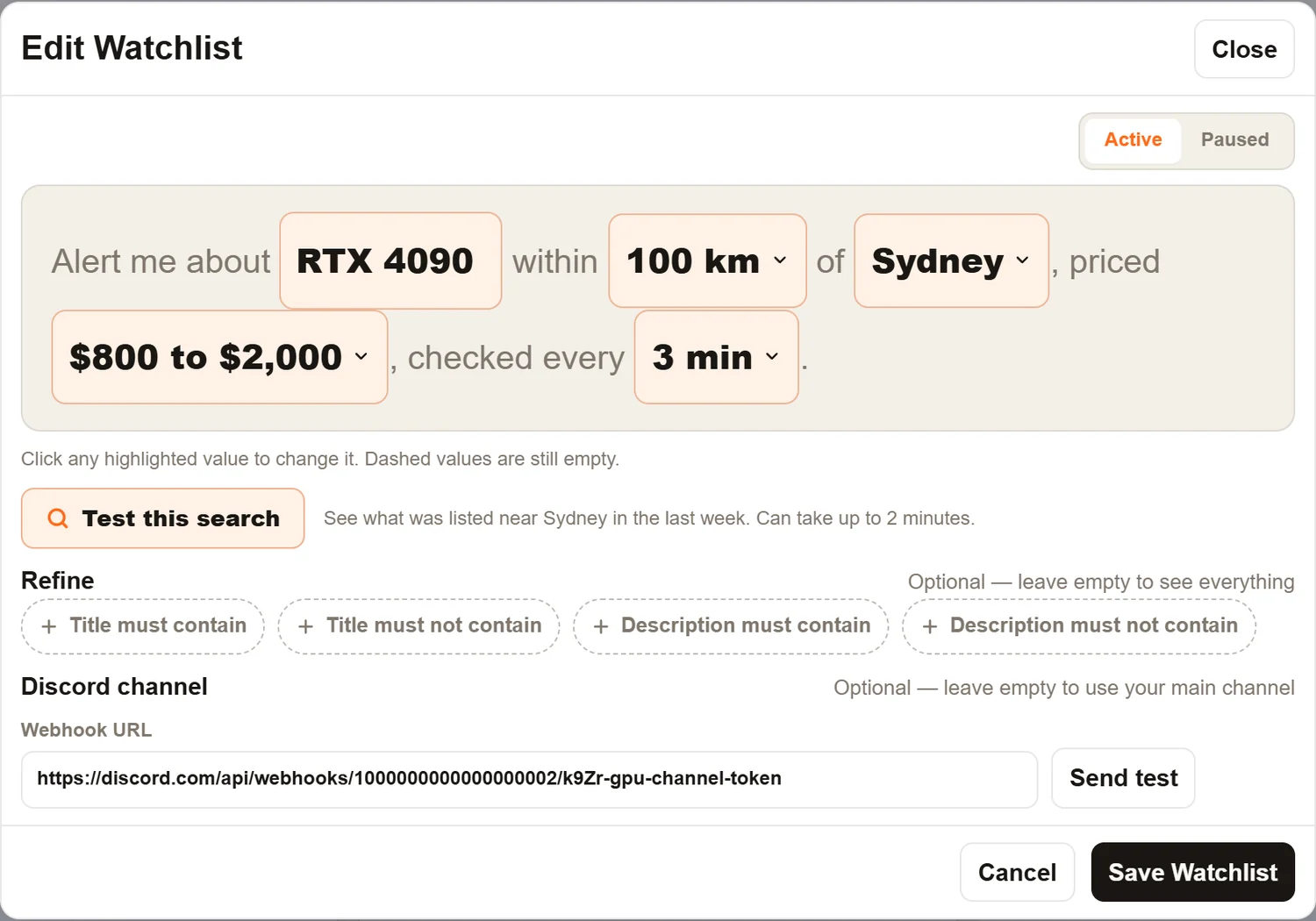
A watchlist with its own channel posts there and not to the main channel. The watchlist card shows “own Discord channel” so you can see which ones are set up this way. To go back to the main channel, open the watchlist and clear the field.
Example layout. A reseller with three lines of stock might have a server with #gpus, #phones and #furniture, each fed by its own watchlists, and a #everything-else channel as the main webhook for the rest. A buyer looking for one thing just uses one channel.
5. Make Discord ping your phone
This is the step most people miss. Messages posted by a webhook do not mention anyone, so Discord treats them like ordinary chat and, by default, does not send a notification for them. You will see the alert when you open Discord, but your phone will not buzz.
To fix that, on each alert channel:
- Open the channel. On a computer, right-click its name; on the phone, press and hold it.
- Choose Notification Settings.
- Select All Messages.
Then check three things that can still silence it:
- The server is not muted. Right-click or press and hold the server icon and check Mute Server is off.
- The Discord app is allowed to send notifications on your phone, in the phone's own settings.
- On an iPhone, a Focus mode or Do Not Disturb is not blocking Discord.
If the main channel gets busy, mute it and keep All Messages on only the per-watchlist channels you care about.
6. Quiet hours and the sound
Quiet hours, in Settings, then Alerts, pause searching between the two times you set, in your time zone. Discord posts pause with it. Listings posted during quiet hours are not sent when quiet hours end, because by then they are hours old. Only use quiet hours for times when you would never buy anyway.
The alert sound in the same settings panel is separate from Discord. It plays in the web browser while the dashboard tab is open. Discord has its own notification sounds, set in Discord.
7. When nothing arrives
Discord is set up correctly. The watchlist has simply not matched a new listing yet. Listings under Before your outpost started are never posted to Discord. Check the chip on the watchlist card, and run Test this search to see how often the item is listed. Writing a watchlist that works covers what to change.
Either the webhook or its channel was deleted in Discord, or the URL was pasted with a missing character or a space. In Discord, open the channel's Integrations, check the webhook is still there, press Copy Webhook URL again, and paste it fresh. If the webhook is gone, make a new one.
In order of likelihood: someone deleted the webhook or the channel in Discord; Enable Discord webhooks has been unticked; it is quiet hours; or the watchlist has been paused. Press Send test webhook to tell the first two apart.
That watchlist has its own Webhook URL set in its editor. Open the watchlist and clear the field to use the main channel, or paste the right channel's URL.
The channel is not set to All Messages, the server is muted, or the phone is blocking Discord notifications. Go through section 5.
It must begin with https://discord.com/api/webhooks/. Links to the channel itself, invite links and bot tokens are not webhooks. Copy it from the webhook's own Copy Webhook URL button.
The same webhook URL is in Settings and in a watchlist's own Discord field. Clear one of them.
8. Sharing with a team
Everyone in the channel sees each alert at the same moment, which makes a shared channel a good way to run a buying crew: one person watches, several people can message sellers. A few tips:
- Give each buyer their own channel by watchlist, so the person who covers furniture is not scrolling past graphics cards.
- Agree on a reaction, like a thumbs up, that means “I have messaged this one”, so two people do not chase the same seller.
- Keep the webhook URLs to yourself. Members of the channel do not need them; only the person who sets up Outpost does.
Common questions
Do I need a Discord bot?
No. A webhook posts messages into a channel, which is all an alert needs. There is nothing to host and no bot to invite.
Can one watchlist post to two channels?
No. A watchlist posts to its own channel if it has one, otherwise to the main channel, never both. If you want everything in one place as well as hunt-specific channels, keep the main channel for the watchlists without their own channel.
Can I send alerts to Slack, Telegram or email instead?
Not at the moment. Alerts go to the dashboard, the iPhone app as push notifications, and Discord. Discord is free and runs on every phone, so it is the usual answer for Android users.
Does the free trial include Discord?
Yes. Discord, push notifications and the dashboard are on every plan, including the trial.
Can the seller see that I use Discord or Outpost?
No. Outpost reads public Marketplace search and posts into your own channel. Nothing is sent to Facebook or to the seller.
Do I need a paid Discord plan?
No. Webhooks are part of free Discord.
Set it up in two minutes
Make the webhook, paste it under Settings, then Alerts, and send a test. If the test does not arrive, tell us what the status line said and we will sort it out.